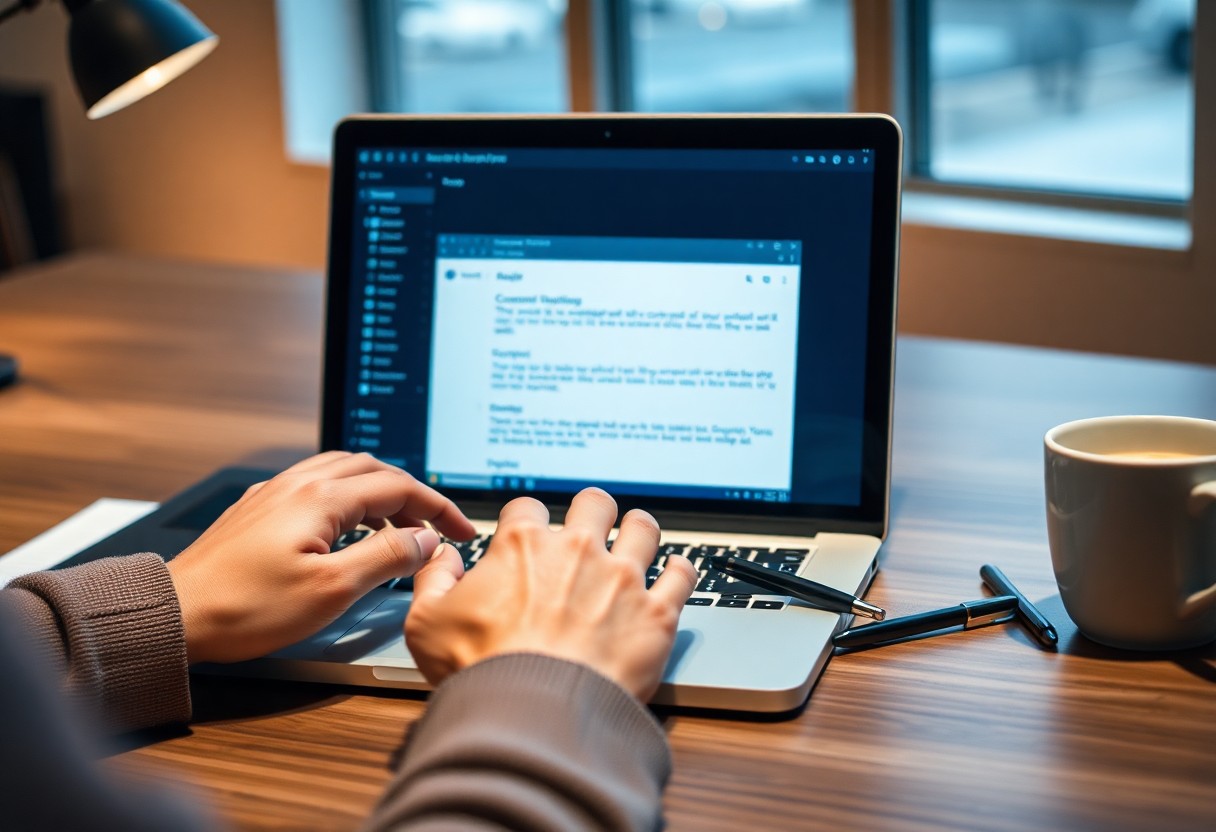
AI has changed how I write emails, saving me hours every week. I use it to draft clear, professional messages in seconds, and you can too. With the right prompts, your emails become more effective without sounding robotic. Let me show you how I do it.
Key Takeaways:
- Use AI to draft email content quickly by providing clear prompts that include the purpose, tone, and key points you want to convey.
- Always review and personalize AI-generated emails to match your voice and ensure accuracy, especially when addressing specific recipients or sensitive topics.
- Save time on repetitive messages by creating AI-powered templates for common email types like follow-ups, meeting requests, or status updates.
Picking Your Perfect AI Assistant
I’ve found that not every AI tool fits the same workflow. Your needs depend on how you communicate and what kind of support you want. Choosing the right assistant means looking beyond flashy features and focusing on what truly helps you write better emails faster.
Key factors to consider when choosing a tool
When evaluating options, I pay close attention to accuracy, ease of use, and integration with my email platform. Some tools require steep learning curves, while others feel natural from day one. This direct fit with my habits makes all the difference in daily use.
- Accuracy in tone and grammar
- Integration with Gmail or Outlook
- Privacy and data handling policies
- Customization for personal voice
Matching features to your daily needs
Daily email demands vary-you might send quick replies or draft detailed proposals. I look for tone suggestions, shortcuts for common messages, and tools that learn from my style. This helps me stay efficient without sounding robotic.
For example, if you’re constantly writing follow-ups, a tool with smart templates saves real time. I prefer assistants that adapt to my phrasing instead of imposing a generic voice. When the AI feels like an extension of my thoughts, clarity and speed improve naturally. This makes a noticeable difference by midweek.
How to Set Up Your AI for Success
I make sure my AI works well by giving it clear instructions and setting it up where I actually write-right inside my email or writing app. Connecting it properly saves me time and cuts down on mistakes, so every message feels natural and on-brand.
Connecting the tool to your email account
You’ll get the most out of your AI when it’s linked directly to your inbox. I simply follow the app’s secure login steps, and within minutes, I’m drafting replies without switching tabs.
Teaching the AI your unique writing style
I feed the AI a few of my past emails so it learns how I sound-whether I’m casual, formal, or somewhere in between. It picks up my tone, favorite phrases, and even how I sign off.
Over time, I’ve noticed the AI starts mirroring my voice so well that even my coworkers can’t tell a message was AI-assisted. I keep refining it by correcting drafts when needed, and now it knows I prefer short sentences, active verbs, and a friendly opener like “Hope you’re doing well.” This personal touch makes all the difference-my emails feel authentic, not robotic.
Pro Tips for Crafting Great Prompts
I always get better results when I use clear language, specify the email purpose, and include the tone I want. For more examples, check out How to Use AI to Write Emails (With 50+ Prompts). Any small tweak to your prompt can make a big difference.
Simple tips for clearer instructions
- Use specific details like names and deadlines
- State the goal of the email upfront
- Keep sentences short and direct
You’ll see faster, more accurate drafts when you give focused input. The key is clarity over complexity.
Using context to get the right tone
I adjust my AI prompts by adding context like the recipient’s role or our relationship. Mentioning if it’s formal, friendly, or urgent shapes the output perfectly. This small step ensures your message feels natural and appropriate.
When I tell the AI whether I’m writing to a busy executive or a close teammate, it changes the phrasing and structure automatically. Including details like the purpose of the message or past interactions helps the AI reflect the right level of warmth or professionalism. You don’t need to guess-just share a little context, and the tone follows.
How to Edit AI Drafts Like a Pro
I follow simple steps to refine AI-generated emails and make them sound more like me. You can learn these techniques too-check out 7 Genius Ways to Use AI to Write Emails for smart tips that deliver real results without sounding robotic.
Checking for accuracy and warmth
Every AI draft I review gets a close read for factual correctness and tone. I look for phrases that feel cold or off-brand and adjust them so the message sounds sincere and true to my voice.
Making quick tweaks for a human feel
Small changes make a big difference in how your emails land. I swap generic lines with a personal detail or a friendly phrase so you come across as approachable and authentic, not like a bot.
Adding a quick “Hope you’re having a great week!” or mentioning a recent conversation shows you’re paying attention. These tiny touches cost nothing but mean everything-they turn a clean AI draft into a message that feels truly yours. I always ask myself: “Would I say this to a colleague in person?” If not, it needs one more tweak.
Essential Factors for Email Privacy
- Always use end-to-end encryption when sharing sensitive details
- Review who has access to your email account and remove unused apps
- Enable two-factor authentication to protect your login
- Choose AI tools that don’t store your personal data
I keep my messages secure by limiting what I share and knowing how my data is handled. Recognizing privacy risks helps me use AI tools safely.
Keeping your sensitive info safe
I avoid including personal details like passwords or financial info in drafts. You reduce risk by only sharing what’s necessary. Recognizing what qualifies as sensitive keeps your messages safer.
Understanding data usage policies
I read the fine print before using any AI email tool. You’d be surprised how many services keep copies of what you write. Recognizing how your data is stored and used protects your privacy.
When I review a tool’s data policy, I look for clear answers on whether my emails are used to train models or shared with third parties. Some platforms anonymize inputs, while others don’t-and that makes a big difference. I only trust services that give me control and transparency, because your words should stay yours.
Extra Tips to Boost Your Speed
- Use AI templates for common messages to save time
- Enable smart suggestions to complete sentences faster
- Train your tool with your tone for consistent replies
Knowing how to streamline small tasks makes a big difference.
Creating shortcuts for repetitive replies
I set up custom shortcuts for answers I type often, like meeting confirmations or quick updates. With AI-powered snippets, I just type a trigger phrase and the full response appears. This saves me minutes every day and keeps my replies consistent and professional.
Managing a busy inbox in half the time
You can clear your inbox faster by letting AI sort and summarize messages automatically. I let it highlight urgent emails and draft quick replies to routine ones. Knowing which messages need your attention-and which don’t-cuts stress and time spent scrolling.
When I first tried AI to manage my inbox, I was skeptical. But now, it scans incoming messages, groups similar threads, and even suggests one-line responses. I spend less time reading and more time acting. The biggest win? It flags follow-ups I might miss, so nothing slips through the cracks.
Final Words
Now I use AI to write emails faster and better, and so can you. I type a quick idea, and it helps me shape a clear, friendly message in seconds. You keep control over tone and details, while AI handles the heavy lifting. It’s simple, personal, and saves me time every day.
Leave a Reply